

Installing and updating
Every way to make a Helix Boot stick and keep it current: the Linux scripts, the one-file downloads for Linux, Windows and Mac, and the window on Windows and Linux.
The ways in
Section titled “The ways in”Linux. Needs Python 3.11+ and sudo; nothing to pip install.
That means Python 3.11.4 or newer: Ventoy’s archive is only unpacked with the
safe extraction those versions have. Keep the stick plugged in until it’s done.
git clone https://github.com/Commanderx-code/helix-bootcd helix-boot
./helix check        # latest version of everything (no downloads)./install.sh           # download + verify, pick a stick, type its name to confirm
Keep it current later:
./refresh.sh # update the stick in place./refresh.sh --upgrade-ventoy # …and the Ventoy boot loader too./theme.sh --menu # change how the boot menu looks./check.sh # read the stick back: any damaged or missing files?./install.sh --test tests a stick before filling it: it writes the stick
full, reads it all back and only then copies the tools on. That finds a stick
that is failing, or a fake with less room than it says, before you rely on it.
It is slow (the whole stick is written twice). An update tells you when a stick
has gone a month without a check.
Linux, one file. Or skip the clone: download HelixBoot.sh from
Releases, put it in a
folder of its own, then chmod +x HelixBoot.sh && ./HelixBoot.sh. A menu offers
Install, Update, Change a stick’s look, Check for tool updates and Check a stick
for damage; ./HelixBoot.sh --help lists the rest. Your
local.toml and byo/ folder live next to it, and a pack beside it is used
with no downloads.
Linux, in a window. Download HelixBoot-linux-x86_64 from
Releases, put it in a
folder of its own, then chmod +x HelixBoot-linux-x86_64 && ./HelixBoot-linux-x86_64.
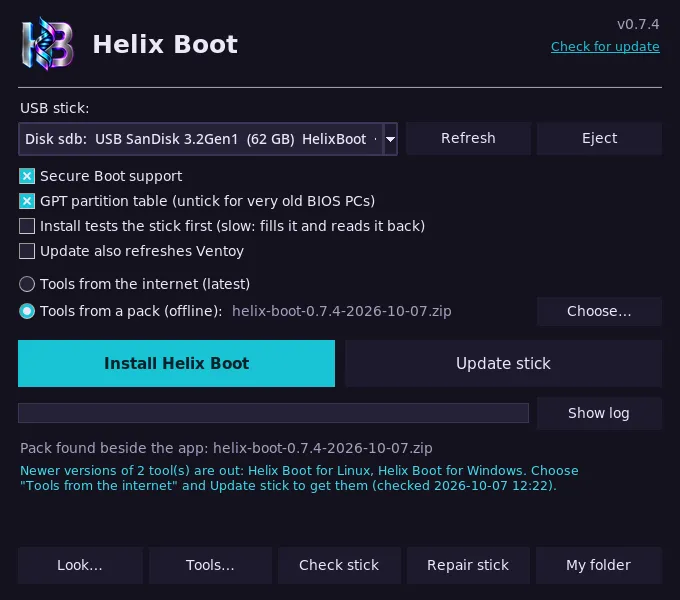
It is the same window as the Windows app: pick the stick, then
Install or Update, with Look, Check stick and Repair stick beside them. Run it
as your normal user. It asks for your password, in your desktop’s own dialog,
only to install Ventoy and to repair a filesystem. From a clone it is
python3 linux/helix_gui.py, which needs Tk (tk on Arch, python3-tk on
Debian and Ubuntu). ./HelixBoot-linux-x86_64 --add-launcher puts it in your
applications menu.
Windows. Download HelixBoot.exe from
Releases, put it
in a folder of its own and run it (see below).
Checking a download. Every release has a SHA256SUMS file, and GitHub
records that the files were built from this repository by its own workflow.
To check, run sha256sum -c SHA256SUMS (on Windows,
Get-FileHash HelixBoot.exe and compare). With the GitHub CLI you can also run
gh attestation verify HelixBoot.exe --repo Commanderx-code/helix-boot.
Windows SmartScreen may still warn, because the .exe isn’t code-signed yet.
The code signing policy says how signed releases are
made, and has the privacy policy: what the app contacts, and what it changes
on your PC.
Mac. Download HelixBoot-mac-arm64 (Apple Silicon) or
HelixBoot-mac-x86_64 (Intel) from
Releases. There is
nothing else to install. Put it in a folder of its own, and in Terminal:
chmod +x HelixBoot-mac-arm64xattr -d com.apple.quarantine HelixBoot-mac-arm64 # it isn't signed by Apple, so macOS would refuse it./HelixBoot-mac-arm64 # update the stick that's plugged in: it asks firstcheck reads the stick back for damage and look changes its theme, as
check.sh and theme.sh do. From a clone of this repo, run the same thing as
python3 mac/helix-mac (Python 3.11 or newer).
Creating a stick on a Mac is experimental: ./HelixBoot-mac-arm64 install --disk disk4
(add --test to test the stick first).
Ventoy has no installer for macOS, so this writes Ventoy’s layout onto the disk
itself, as Ventoy’s own installer does on Linux. CI makes a stick this way on a
Mac and boots it in a virtual PC, but it hasn’t been tried on many real sticks.
If yours doesn’t boot, make it once on a PC and keep it current from the Mac.
From a stick. Every Helix Boot stick carries both apps in its HelixBoot
folder, so a stick can be updated, or its look changed, from any PC: run
HelixBoot.exe on Windows, or bash HelixBoot.sh on Linux.
From a pack. Already have a pack zip? No clone needed:
unzip pack.zip 'installer/*', then installer/install.sh, or on Windows run
installer\HelixBoot.exe from beside the zip
(details).
The Windows app
Section titled “The Windows app”The same window runs on Linux (HelixBoot-linux-x86_64), where a stick is a mount point and
not a drive letter and Repair stick runs fsck.
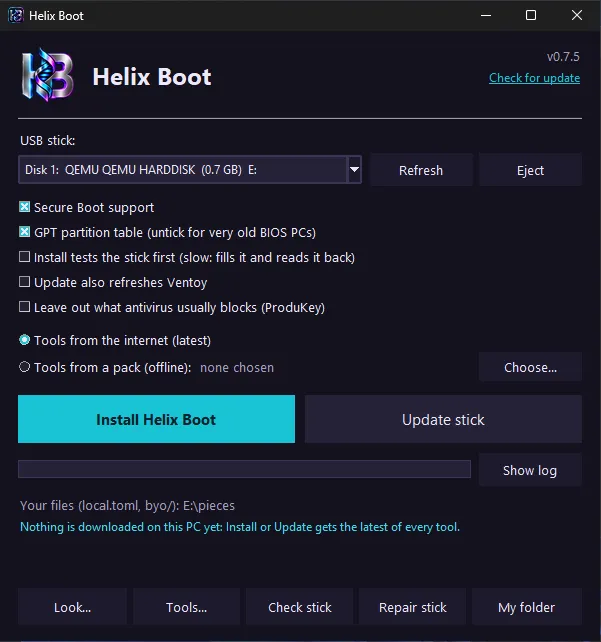
HelixBoot.exe asks for admin rights, because installing Ventoy writes
to the disk.
- Pick the USB stick from the drop-down. Only USB/SD disks are listed, never the one Windows is running from; a stick that already has Ventoy is picked for you.
- Install erases the stick (you type its disk number to confirm), installs Ventoy and copies everything on. Tick Install tests the stick first to have it written full and read back before that (slow, but it finds a failing or fake stick). Update refreshes a stick you already have and keeps your files, including tools this PC has no copy of. It first shows what it will copy, remove and keep, and asks before changing anything.
- Look… changes the selected stick’s look: a preset theme, the icons, your own background (with a slider to darken it) and splash, with a preview of the boot menu. Nothing changes until Apply to the stick. Save look… keeps the look, with your own pictures and icons, in a small zip. Load look… puts it back, or onto another stick.
- Check stick reads the whole stick back and compares every boot image and app with what was put there, so it finds a stick that’s going bad. It needs no downloads. The next Update copies again whatever it finds damaged. If files go bad again after that, it tells you to replace the stick. An update reminds you when a stick has gone a month without a check.
- Repair stick has Windows repair the stick’s filesystem (
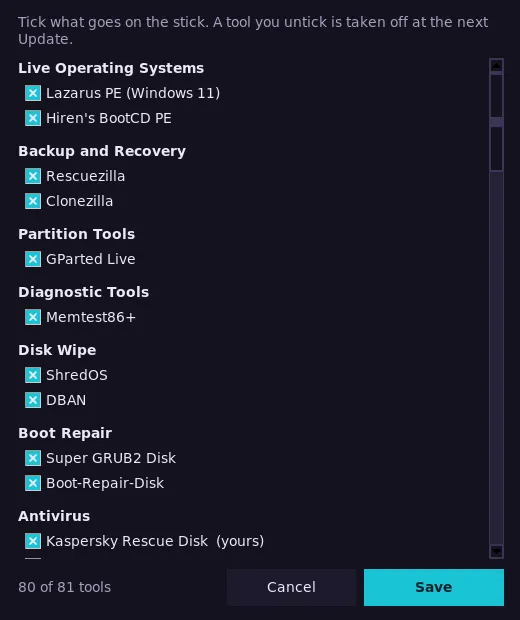
chkdsk /f), for when an update or a check says it is damaged. It asks first. - Tools… is a list of every tool to tick, by category: what goes on the
stick, without editing
local.toml. It applies from the next Update. - Eject, beside Refresh, flushes what was written and ejects the stick, so it is safe to unplug.
Check stick also watches the programs you add to the stick yourself, portable apps for one. It remembers what each was and tells you when one has changed since the last check: expected if you updated it, a warning if you didn’t.
Some antivirus programs stop a few tools being written. ProduKey is one, which is why it is off unless you tick it in Tools…. With such a tool ticked, the app says so before an install and offers to leave it out; otherwise it is tried, skipped if blocked, and named at the end.
The app keeps itself current too. When it starts it looks for a newer Helix Boot and asks whether to get it, and Check for update under the version number does that whenever you click it. The new program is downloaded from the release, checked against the checksum GitHub records for it, and takes the place of the one that is running; close the window and start it again.
Under the title the app says whether newer versions of your tools are out. It
looks at most every 6 hours, because GitHub limits how often a PC that isn’t
signed in may ask. check_for_updates = false under [settings] in
local.toml turns that off; the privacy policy
lists everything the app contacts.
A stick is recognised whatever you have named its main partition: it is known
by Ventoy’s own small VTOYEFI partition.
It uses the same engine as the Linux scripts: the same tool list, checksums,
theme and menu. Like the Linux scripts, Install and Update add a few lines to
Ventoy’s own boot script on the stick, for the splash and for the two keys in
the menu’s bottom row that open a power menu (L) and start Memtest86+ (F1).
If Windows won’t let the app at Ventoy’s partition, the stick starts as Ventoy
does and the row shows those keys as Ventoy has them, Language and Help. Your local.toml and byo/ folder live next to the .exe, and
downloads are cached in %LOCALAPPDATA%\HelixBoot. The command line
works too: HelixBoot.exe --help.
Tools from chooses where Install and Update get the tools. The internet
downloads the free tools fresh; your own paid tools come along only if their
files are in the byo folder beside the .exe. A pack copies everything
from a pack zip with no downloads, your own tools included, and a pack next to
the .exe is chosen for you. From the command line, add
--pack helix-boot-<version>-<date>.zip to --install or --update; --look E:\
opens the Look window, or changes the look with --theme, --icons and so on
(--export-look / --import-look save and load one). --check E:\ checks a
stick, and --updates lists the tools with newer versions.


© 2026 Helix Tech LLC. Helix Tech™ is a trademark of Helix Tech LLC.