

The boot menu's look
./theme.sh changes a finished stick’s look without rebuilding anything. The
choice is kept on the stick, so a refresh doesn’t undo it:
./theme.sh # how it looks now, and what there is to choose./theme.sh --menu # choose from numbered lists, with a preview./theme.sh --theme midnight # a preset: midnight, ember, terminal, slate (default: Helix Neon)./theme.sh --theme standby # the plain one (also --theme off); poly-dark is another./theme.sh --icons off # no icons, just names (--icons grey, --icons badges)./theme.sh --background ~/pic.jpg --dim 40 # your own picture behind the menu, darkened 40 %./theme.sh --splash ~/pic.png # your own picture before the menu (--splash off: none)./theme.sh --preview out.png --theme ember # a picture of how it would look; the stick is untouched./theme.sh --reset # back to the default look./theme.sh --export my-look.zip # save the look, with your own pictures and icons./theme.sh --import my-look.zip # put it on this stick, or a new oneA saved look holds only the choices and pictures, so it’s small. Keep one in
case the stick is lost. Loading it onto a stick that lacks its theme uses the
default theme and says so. Its icons and splash stay on the stick through
updates, unless the updating PC has its own in byo/.
On Windows it is the app’s Look… button, with a live preview, or
HelixBoot.exe --look E:\ --theme midnight. Its Save look… and
Load look… buttons save and load a look. HelixBoot.sh has it in its menu
as Change a stick’s look.
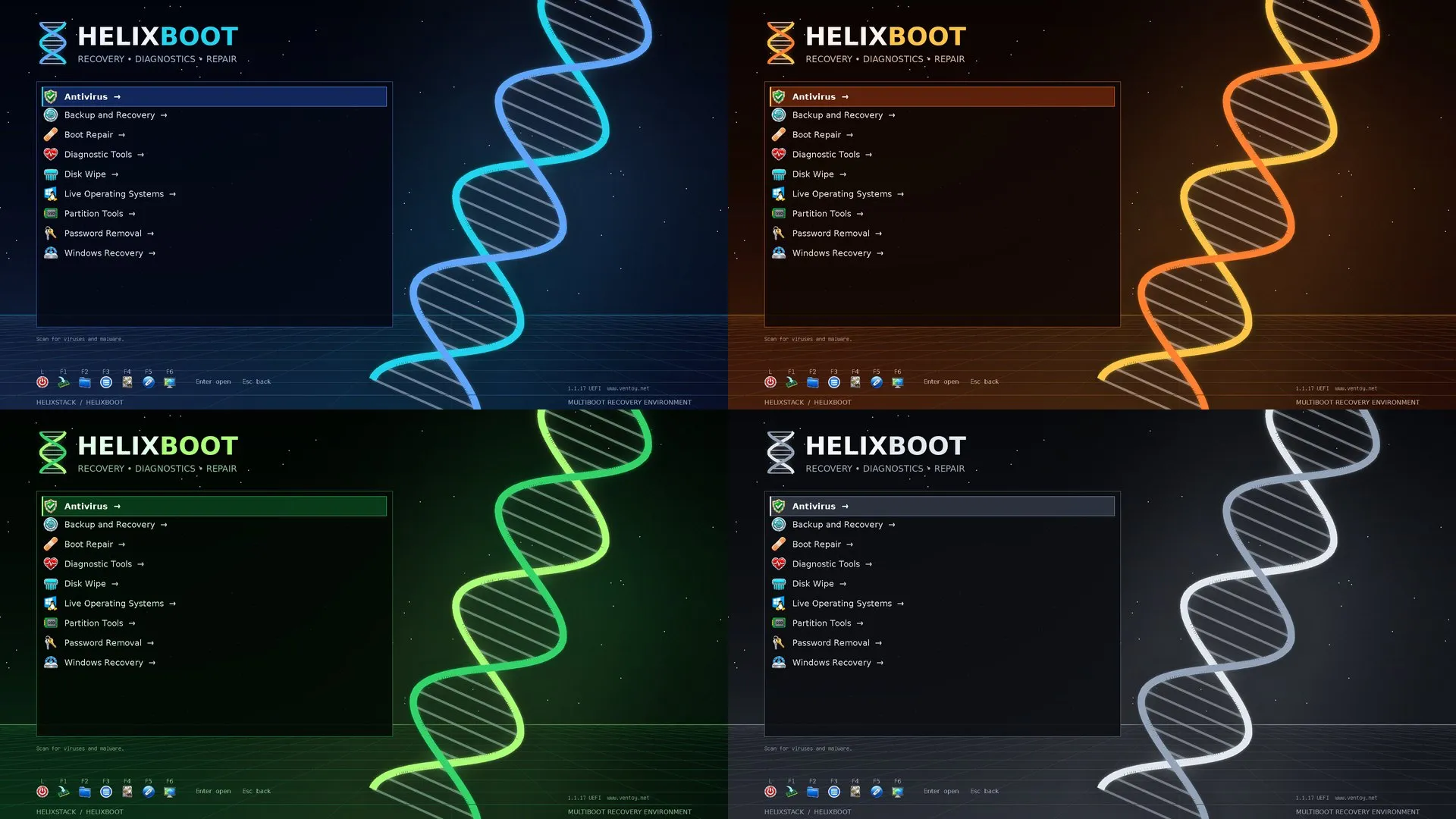
| Theme | |
|---|---|
default |
Helix Neon: purple and cyan over the helix artwork |
midnight |
deep navy with ice blue and cyan |
ember |
charcoal with orange and amber |
terminal |
black with phosphor green |
slate |
plain graphite and steel |
standby |
black cubes, a power symbol, grey icons; the plain choice (--theme off gives it) |
poly-dark |
dark polygons and a plain list, in greys |
Midnight, Ember, Terminal and Slate are the same menu in other colours, over
artwork drawn by theme/build-theme.py, so all of it can be shared. Standby
(by Llewelyn Trahaearn, GPL) and Poly dark (by Andrei Shevchuk, MIT) are
other people’s GRUB themes with their own layout, adapted for Ventoy. Standby
takes the place of Ventoy’s own white look, which theme = "" under
[settings] in local.toml still gives.
| Icons | |
|---|---|
auto |
the theme’s own style: the icons in colour, or grey on Standby and Poly dark (the default) |
logos |
the default icons in colour, and yours from byo/icons/ |
grey |
the same icons in shades of grey; a flat one-colour icon turns white |
badges |
two-letter badges in place of the tools’ icons |
off |
no icons, just the names |
Your own pictures are resized to 1920×1080 with Pillow; without it, a PNG is used as it is. See the theme notes for how the stick stores its look, and for adding a preset or an icon pack of your own.
Your own icons and splash
Section titled “Your own icons and splash”To give a tool your own icon, save a square PNG as
byo/icons/<tool name>.png; byo/icons/cat-<category id>.png replaces a
category icon, and Ventoy’s own (vtoyiso, vtoydir, vtoyret for “back”, …)
can be replaced the same way. Yours win over a preset’s. Ventoy shows icons at
40×40, and big ones use up its memory at boot so later icons don’t appear:
theme/build-theme.py --fit-icons shrinks yours to 40×40, keeping the
originals in byo/icons/originals/. A whole set of your own goes in
byo/icon-packs/<name>/ and is picked with ./theme.sh --icons <name>. Put
icons there, not straight onto the stick: the stick’s theme folder is rebuilt
on every refresh.
When the stick boots, a splash shows for about a second before the Ventoy
menu, with a loading bar filling up along the bottom: the HELIXBOOT logo over
the theme’s artwork, or your own picture saved as byo/splash.png (1920×1080
works best). splash_seconds under [settings] in local.toml sets how long
(0 turns it off). The boot loader only counts whole seconds, so the bar is a set
of frames drawn one after another, and a slower PC takes a little longer.
Refresh makes the frames with Pillow (python-pillow); without it the splash
is a still picture. Ventoy has no setting for a splash, so install.sh and
refresh.sh add a few marked lines to Ventoy’s own boot script on the stick’s
small VTOYEFI partition, and re-add them after a Ventoy upgrade.
The default theme
Section titled “The default theme”Helix Neon is purple/cyan DNA artwork, the HELIXBOOT wordmark and a purple selection with a cyan edge. The menu, scrolling, timeout, hotkeys and boot-mode indicators are real Ventoy components; no menu entries are painted into the wallpaper. Lazarus PE keeps its separate green PortableApps theme.
Every tool, category and Ventoy entry has an icon from one glossy set, the HELIXBOOT icon collection, the same on every theme. The icon notes show the set and say how to change an icon or use one of the collection’s extras.
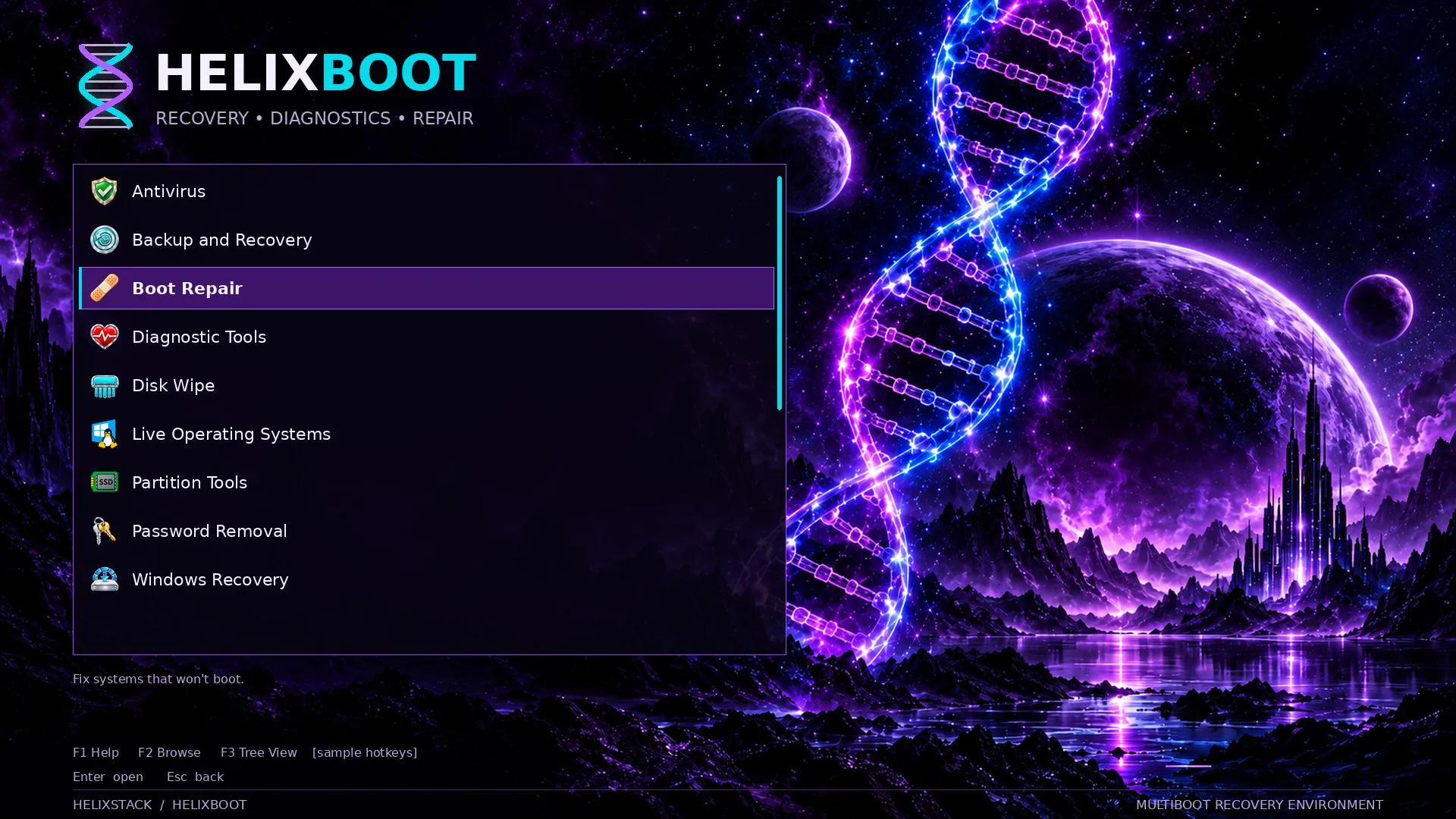
The image above is a layout preview; the screenshots at the top are the real thing. The themes target 1920×1080; other screen modes use Ventoy’s resolution fallback, and longer menus scroll.
The theme lives in theme/. Edit theme.txt for layout, or the
colours and text in theme/build-theme.py, and re-run it to regenerate the
images, icons, presets and fonts (--skip-fonts reuses the committed fonts).
./refresh.sh then puts it on a stick; no PE rebuild is needed. See the
theme notes for rebuilding assets and checking the result on
your hardware.
Layout on the stick
ISO/1-Antivirus/ ISO/2-Backup-and-Recovery/ ISO/3-Boot-Repair/ISO/4-Diagnostic-Tools/ ISO/5-Disk-Wipe/ ISO/6-Live-Operating-Systems/ISO/7-Partition-Tools/ ISO/8-Password-Removal/ ISO/9-Windows-Recovery/ISO/OSimages/ your own installer ISOs (never touched; hidden while empty)Apps/ portable apps, the Helix Apps menu and LazarusStartup.cmdApps/Lazarus/ the Lazarus launcher (Lazarus PE's start screen)HelixBoot/ HelixBoot.exe and HelixBoot.sh: update the stick or change its look from any PCMac/ tools for a working Mac, as downloaded, with a README.txtPortableApps/ the PortableApps.com Platform's apps (Start.exe at the root)ventoy/ventoy.json generated menu: tree view, friendly names, icons, tipsventoy/theme/ the look in use, built from .helix-boot (rebuilt on every refresh).helix-boot/ what this project manages: which tool each file is and which PC put it there, the theme with its presets, and the look you chose

© 2026 Helix Tech LLC. Helix Tech™ is a trademark of Helix Tech LLC.