

The window
helix-toolbox-gui is Helix Toolbox in a window: a Tauri 2 application on
the same crates as the command line and the terminal interface. It shows
the catalog and how each package entry stands, keeps the Install Plan, and
runs a plan in an embedded terminal, with the same checks before a run, the
same confirmation, verification and history. Every change to the machine
stays in the engine: the window asks for a plan, shows what came back, and
draws the events of the run (EVENTS.md).
Installing
Section titled “Installing”Each release has the window for x86_64 and aarch64 (ARM64) as a Debian
package, an RPM and an AppImage. Install the helix-toolbox package first
(INSTALL.md): the window finds the command line beside itself
or on the PATH and runs it for the built-in steps, such as the system
report, and the Debian and RPM packages require it.
sudo pacman -U helix-toolbox-gui-1.10.0-1-x86_64.pkg.tar.zst # Arch and derivatives (aarch64 on ARM64)sudo apt install ./helix-toolbox-gui_1.10.0_amd64.deb # Debian, Ubuntu (arm64 on ARM64)sudo dnf install ./helix-toolbox-gui-1.10.0-1.x86_64.rpm # Fedora (aarch64 on ARM64)sudo zypper install --allow-unsigned-rpm ./helix-toolbox-gui-1.10.0-1.x86_64.rpm # openSUSEchmod +x helix-toolbox-gui_1.10.0_amd64.AppImage && ./helix-toolbox-gui_1.10.0_amd64.AppImage # any distributionOn Arch, the pacman repository in INSTALL.md has the window’s package too, updated with the system. The Updates screen’s Helix Toolbox row updates the window’s package together with the command line’s, and an AppImage in place.
The packages add a menu entry, Helix Toolbox, with the icon (drawn flat
at menu sizes, 16 to 48 pixels, where the full picture would blur). The
window is drawn by WebKitGTK 4.1, which the Debian and RPM packages install
with it; the AppImage carries its libraries. The files are checked like the
others: sha256sum --check --ignore-missing SHA256SUMS and
gh attestation verify <file> --repo Commanderx-code/Helix-toolbox.
The screens
Section titled “The screens”Each screen’s header names where it sits in the sidebar above its title, with the screen’s buttons beside it.
- Dashboard: a welcome by your account’s full name (else your login name), a card saying what Helix Toolbox is for on this distribution, how many package entries are installed or have an update waiting, what is queued and pinned, the machine’s facts (the same as the terminal interface’s System Overview), and the quick actions.
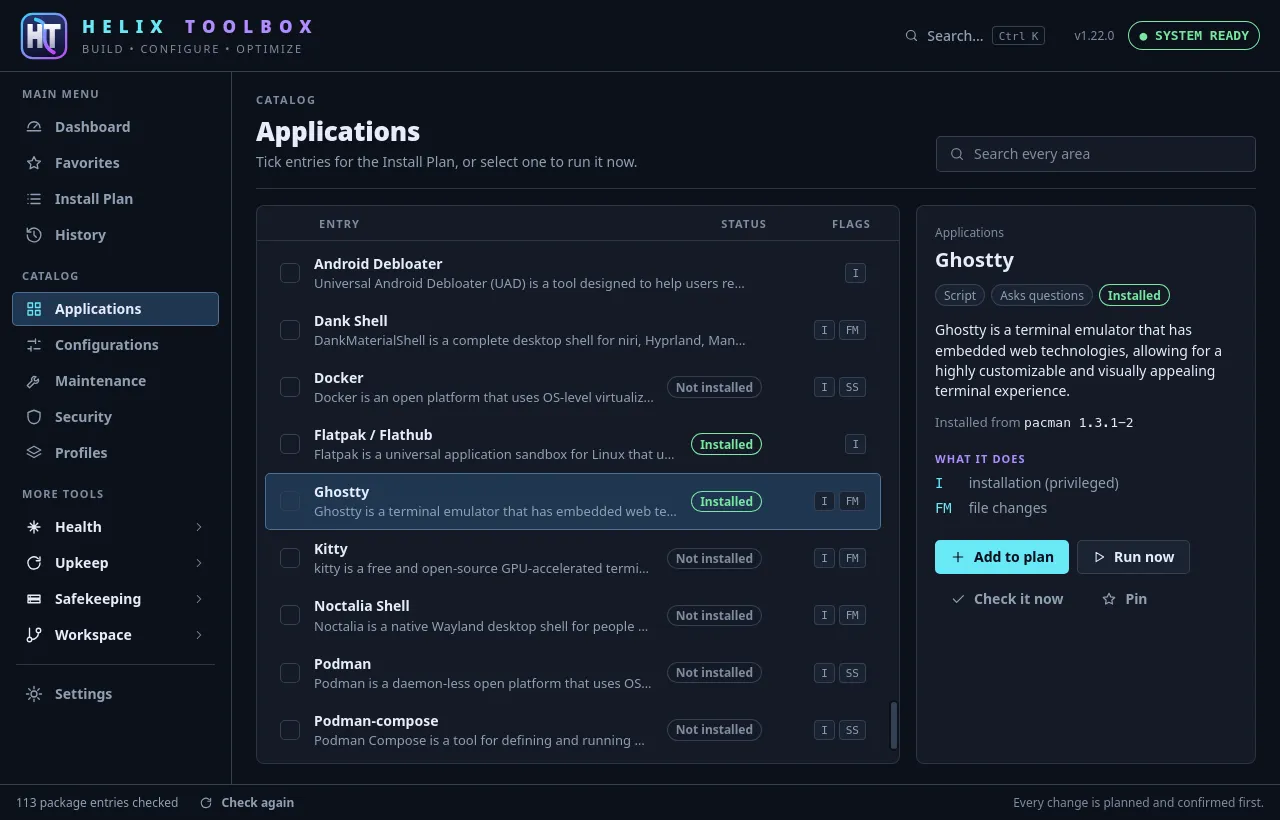
- The areas (Applications, Configurations and the rest of the
catalog): the entries in their groups, each with its status (Installed,
Update, Managed, Not installed, from where and at which version) and its
flags. The search field looks through every area. Ticking an entry
queues it in the Install Plan; selecting one shows its details, with
Add to plan, Run now and Pin. An entry that runs on its own
(interactive installers, for example) has Run now only, as in the
terminal interface. A package entry that offers removal and is
installed has Remove… too, the terminal interface’s
r: the package manager or Flatpak that installed it removes it, after the same confirmation. Check it now makes the entry’s checks, read-only, ascdoes in the terminal interface: whether what it installs and sets up is still there. - Favorites: the pinned entries, the same
favorites.tomlthe terminal interface keeps. - Install Plan: the queue, in the order it will be planned; entries can be moved or taken out. Review and run has the engine plan it.
- History: past runs from every interface, newest first. A run that worked has Report it worked…: a hardware report of it, to read, copy or open as an issue in the browser, filled in.
Before a run, the confirmation shows what the terminal interface shows: the risk and whether the run asks for your password, the findings of the checks before a run, warnings about how entries were tested, what happens after a failed step (from Settings in the terminal interface, which also decides whether a snapshot is taken first), and each step with the command it runs. A plan the checks block opens “Cannot run yet” instead, and nothing is changed.
What it changes, in the confirmation, is the terminal interface’s change preview: each step’s expected changes to files, packages and services, marked ✓ known, ~ expected or ? not known in advance, and a file now and afterward side by side where the new contents can be worked out without writing anything. When a dotfiles entry reads a pinned source that is not downloaded yet, Download the source fetches it (and changes nothing else) so its files can be compared too.
The run opens in its own panel: the steps on the left, the terminal on the
right. The terminal is a real one, the same pseudo-terminal the terminal
interface uses: type into it when a step asks something, including the
sudo password prompt, which does not echo. Stop hangs the run up; a
second Stop kills what ignored that. When the run ends, the result and
the checks of the package steps appear below, and Close records the run
in the history. A run from the Install Plan leaves in it what did not
finish, as the terminal interface does: a queued profile’s unfinished
entries take its place, and an entry that needed nothing leaves; a run
that could not start leaves the Install Plan as it was. Then the
window reads again what the run can change, as the engine’s run session
says: how entries stand, Updates, History and the tool screens.
The other tools, under More tools in the sidebar, in four groups that open and close: Health (Helix Doctor, Hardware, Performance, Services, Storage), Upkeep (Updates, Drift, Reliability), Safekeeping (Backups, Restic, Recovery, Migration, Offline bundles) and Workspace (Repositories, Home Manager, Configs, Desktop). The group of the screen shown opens by itself, and the window remembers which you left open; a closed group shows how many updates wait inside it. Settings stays below them.
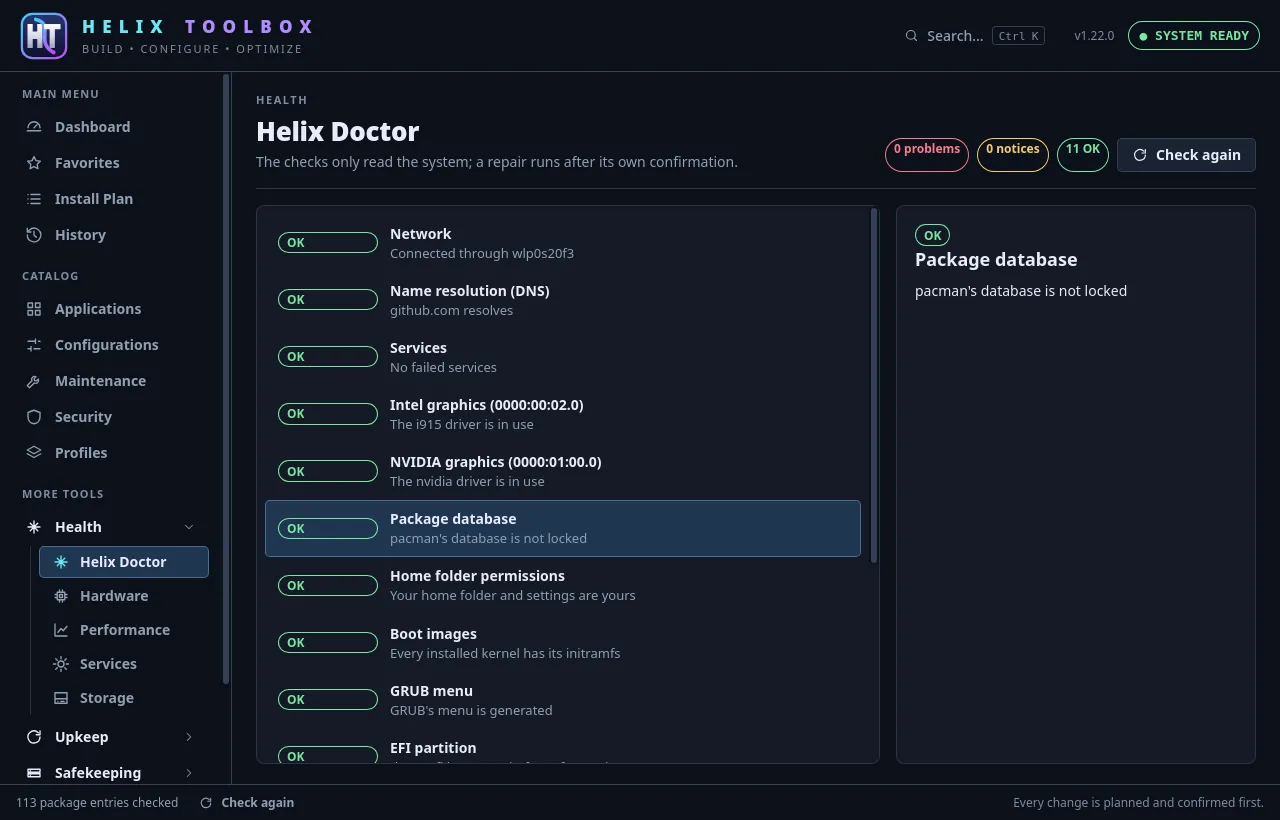
- Helix Doctor: the health checks, each with what it found and what to do; a check with a repair, or an entry that addresses it, has Repair…, which confirms like any run. The Helix Doctor area’s reports and tools are listed below the checks.
- Updates: what each package tool has waiting, from what it already knows, or checked online; Update this channel or Update all runs the tools, and the entries with an update can be updated one by one or all together.
- Backups: the copies entries left beside the files they changed; Restore… moves the current file aside first.
- Drift: how this machine differs from a saved baseline or a profile, the entries that would put back what is missing (add them to the plan or run them), and Save this machine as a baseline.
- Reliability: how far each entry has been tested, critical ones first, with Where it comes from, the trust inspection, and Report it worked… for an entry that ran here.
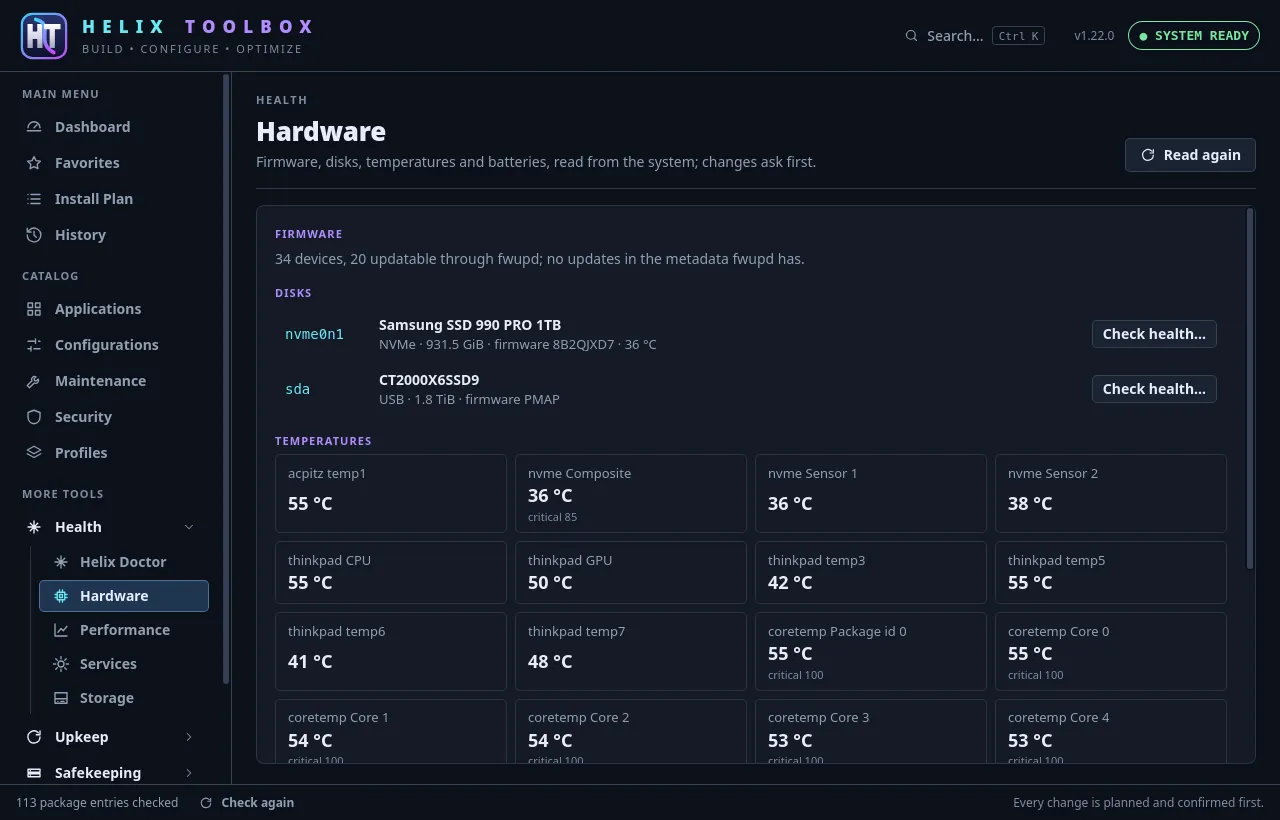
- Hardware: firmware updates through fwupd (typing FIRMWARE first, as in the terminal interface), disks with Check health… (SMART, after confirmation), temperatures, batteries, and the PCI and USB devices.
- Services: the machine’s and your session’s services, timers and
sockets, and what starts at login, with a filter; a unit’s details say
what needs it and what stopping it costs, then Start…, Stop…,
Restart…, Enable… or Disable… review the plan, as
s,eandRdo in the terminal interface. An application at login is turned off or on for you. - Storage: the space on each file system, what can be cleaned with what each frees and Clean… to review its plan, and what is never cleaned here (kernels, snapshots, configuration backups).
- Performance: this boot’s parts as one bar, the boot set beside an earlier one chosen from those recorded (what changed, the kernel, the runs in between), what the login screen waited for, the slowest services, the machine now, and hints, with Turn it off… where a service change would help.
- Recovery: each readiness check with what it found; Check snapshots… reviews the read-only snapshot check, and Set it up with… an entry that would help.
- Migration: what this machine has, with Export… to write it to a file through the file chooser, and Open… (or a path typed in and Read it) to read one made on another machine: what it would install here, what is here already, what cannot be, and the packages left to you, with Install… to review the plan.
- Restic: the repository and how its password is found, with Back up…, Check… and the daily or weekly timer; the snapshots, each Browsed a folder at a time with Restore this…; a file’s history with Restore this version…; a restore into a new folder; and recovery tests, a file’s SHA-256 recorded and Test… against a snapshot.
- Repositories: the Git repositories under your project folders, favorites (the star) first; one opened shows its changes with Diff and Stage… or Unstage…, Stage every change…, a commit message and Commit…, Fetch…, Pull… and Push… (or Publish…), its branches with Switch… and Create…, its stashes with Apply… and Stash…, its tasks with Run… and Keep for a command of your own, and its recent commits.
- Configs: Ghostty’s and Fastfetch’s configuration, each with the file edited, where its program reads it, whether it checks and its Home Manager flake; the common fields with Apply each, the whole file in a text area, Check, Save… (the plan, the file side by side) and Discard changes, and the backups kept with Put back….
- Home Manager: the configuration and its repository, with Build…, Switch… and Pull…; the generations, the active one marked and Go back to it… on the others; and which configuration files Home Manager links.
- Offline bundles: the Install Plan’s entries and the packages they
need, downloaded with Helix Toolbox into a new folder for a machine of
the same distribution without reliable internet. Check what it
needs says which entries go offline and what is downloaded; Make
the bundle… runs
helix-toolbox bundle createin the run’s terminal and installs nothing here. Check it verifies a bundle (made for this machine, every file matching its checksum); Install from it… installs its packages from its files after confirmation. - Desktop: the running desktop and its appearance, Save this look, the saved looks put back after confirmation, and the entries for this desktop.
- Settings: what happens after a failed step and whether a snapshot
is taken first, the same
settings.tomlthe terminal interface keeps its own look in, and Set up this machine…, the setup wizard again. Notifications turn on or off at once, ashelix-toolbox notificationsdoes (GUIDE.md): a timer of the user’s own checks every 6 hours for updates waiting, and if chosen for new health problems and for changes since a Drift baseline, and shows a desktop notification whose button opens this window on Updates, Helix Doctor or Drift. Appearance chooses the window’s theme: Follow the desktop (the default: light or dark as the desktop’s color scheme is, through GTK, and changing with it), Dark or Light. It applies at once and is kept aswindow_theme; the run’s terminal stays dark in either. Make a bug report… (also in the palette) shows whathelix-toolbox reportprints, with the window’s version, how it was installed, WebKitGTK, the desktop and the theme after it, and copies it to paste into an issue. The Install Plan’s Save as profile adds a profile to the Profiles area; a profile’s details have Put its entries in the plan, to queue its entries one by one and change the plan before it runs. Your own profiles, under Your profiles, also have Export…, which writes one to a file to share, and Delete…, once DELETE is typed; Import a profile… at the top of the Profiles area adds one from a file, checked against the catalog, ashelix-toolbox profile importdoes. Both files are chosen in the desktop’s file chooser.
Two things work from every screen:
- The setup wizard opens by itself on the first start, as in the
terminal interface: what this machine is (distribution, package tools,
desktop, graphics, laptop or not), a choice of workstation from
catalog/setup.toml(Developer, Gaming, Privacy, Minimal, Custom), then that workstation’s entries for this machine, ticked where they can run and are not installed. It ends by filling the Install Plan for review; it runs nothing. Closing it remembers, insettings.toml, that it was offered; the Dashboard and Settings open it again. - The command palette,
Ctrl Kor Search… in the header: one list of the screens, actions (check updates online, clear or run the Install Plan, save it as a profile, save a baseline, update every entry, the wizard) and every entry (show it, or inspect where it comes from), ranked as the terminal interface ranks its search.
The keyboard
Section titled “The keyboard”Everything works without a mouse:
| Keys | Does |
|---|---|
Ctrl K |
the command palette, from any screen |
Tab, Shift Tab |
the sidebar, a screen’s list, its details and buttons; each list is one stop |
↑ ↓, Home End |
through the sidebar or a list; in a list the row reached is selected, as the terminal interface’s cursor selects |
Space |
on an entry, put it in the Install Plan or take it out, as in the terminal interface |
Enter |
the focused button or row |
Esc |
close a dialog; in the change preview, back to the confirmation |
Ctrl Tab |
out of the run’s terminal, where Tab is the program’s |
A dialog takes the focus when it opens (the confirmation starts on
Cancel, so Enter never runs a plan by accident), keeps Tab inside
it, and gives the focus back when it closes. Controls are labeled for
screen readers, the run’s progress and messages are announced as they
change, and every text color has at least 4.5:1 contrast in both themes.
How it is built
Section titled “How it is built”apps/helix-toolbox-gui/ src/ the frontend: Svelte 5 and TypeScript, built with Vite lib/api.ts the commands of the Rust side, and sample answers for a browser lib/state.svelte.ts the window's state: catalog, statuses, queue, pins lib/search.ts the search ranking, the same as the engine's lib/*.test.ts the tests of the modules beside them (`npm test`) components/ header, sidebar, entry rows and details, the confirmation, the run panel (xterm.js), the wizard, the palette screens/ Dashboard, Area, Favorites, Plan, History and the other tools tests/drive/ the smoke test's drive script and its workstations src-tauri/ the Rust side, a Cargo workspace of its own src/main.rs the commands, and the run's events forwarded on a Tauri channel src/views.rs what the window reads, built field by field from the engine's types and display rows tauri.conf.json the window, the content security policy, the bundles icons/ the icon in the sizes the bundles ship, written by scripts/icons.shThe Rust side is a separate workspace because it needs WebKitGTK and the built frontend; the command line stays a static program without either. Its commands:
| Command | Does |
|---|---|
about |
the version, the machine’s facts, whether the command line was found |
areas |
the catalog’s areas, groups and entries |
statuses |
how each package entry stands, by id; asks the package managers, off the window’s thread |
favorites, pin |
the pinned entries, and pinning one |
prepare |
plans entries and runs the checks before a run (confirmation::prepare()); a plan ready to run waits for run as its run session |
cancel |
forgets a plan that was not confirmed |
run |
starts the confirmed plan in a terminal of the given size and sends its events to a channel: ExecutionEvent’s JSON form, output as base64 |
write, resize, stop |
what the user typed, the terminal’s size, a stop |
close_run |
stops a run still going and records it in the history; which of the queued entries it is given remain (all of them when the run could not start), what to read again (statuses, updates, tools, history) and why it was not recorded, if it was not |
runs |
the history |
save_profile |
the Install Plan as a profile |
bug_report, copy_text |
helix-toolbox report with the window’s facts, and text put on the clipboard |
read_services, service_details, prepare_service, prepare_autostart |
helix-toolbox services and startup: the units and applications at login, what needs a unit and what stopping it costs, and a change’s plan |
read_storage, prepare_clean |
helix-toolbox storage: the space, what can be cleaned, and a cleanup’s plan |
read_performance, compare_boots |
helix-toolbox performance: this boot, recorded, with the machine now and the boots recorded; one boot beside another |
read_recovery, prepare_snapshot_check |
helix-toolbox recovery: the readiness checks, and the snapshot check’s plan |
read_restic, restic_files, restic_history, prepare_restic, record_baseline, set_restic_timer |
helix-toolbox restic: the repository and its snapshots, a folder of one, a file’s history, a check, backup, restore or recovery test’s plan, a baseline recorded, and the timer turned on or off |
read_configs, validate_config, set_config_field, prepare_config_save, prepare_config_restore |
helix-toolbox config: both configurations with their text, a draft checked, a field changed in a draft, the plan that saves it over the file read (refused when it changed since), and a backup kept beside it put back |
read_home_manager, prepare_home_manager |
helix-toolbox home-manager: the configuration, generations, repository and links, and a build’s, switch’s, generation’s or pull’s plan |
read_repositories, read_repository, repository_diff, prepare_repository_change, prepare_task, save_workspace |
helix-toolbox repos: the repositories found, one in full, a diff, a change’s plan, a task’s plan, and favorites and tasks kept in workspaces.toml; only repositories among those found are taken |
read_migration_export, export_migration, open_migration, prepare_migration |
helix-toolbox migrate: what this machine would export, written to a file, a migration file read here, and its install plan; the file is chosen in the file chooser unless a path is given |
check_entry |
helix-toolbox verify for one entry, as text: Check it now in an entry’s details |
hardware_report, open_issue |
helix-toolbox report --worked for a run or an entry, and its issue opened by xdg-open, outside the AppImage’s own libraries |
import_profile, export_profile, delete_profile |
your profiles: one added from a file, written to one, or deleted; the file is chosen in the file chooser unless a path is given |
doctor, prepare_repair |
the health checks, and a repair ready to confirm |
updates, prepare_channels, prepare_update |
the update channels, and updating channels or entries |
prepare_remove |
removing package entries, as the terminal interface’s r |
list_backups, prepare_restore |
the backups, and a restore |
drift_targets, drift_check, save_baseline |
what to compare with, a comparison, a new baseline |
reliability, trust |
how entries are tested, and one entry’s inspection |
read_hardware, prepare_firmware, prepare_smart |
the hardware, a firmware update, a disk’s health check |
read_desktop, save_look, prepare_look |
the desktop and its looks, saving one, putting one back |
read_settings, save_settings |
the run choices |
save_watch |
what the scheduled check tells of (updates, health problems, Drift from a baseline), and its timer on or off with it |
setup_start, setup_choose, setup_done |
the wizard: the machine and the workstations, a workstation’s entries for this machine, remembering it was offered |
Every prepare_* command answers like prepare, with a plan waiting for
run, so one confirmation dialog serves them all. The frontend only
draws what the commands return and sends back what the user chose; it
holds no catalog logic of its own. The Hardware, Services, Storage,
Performance and Offline bundles screens get their text as display rows
from the engine’s rows module, the same rows the terminal interface
draws: sizes, temperatures, durations and what wants attention arrive
worked out, and the screen lays them out. The search ranking in
lib/search.ts stays a port of the engine’s, since the palette ranks its
own screens and actions on every key typed.
Working on it
Section titled “Working on it”With Node 22 and Rust installed, in apps/helix-toolbox-gui:
npm installnpm run dev # the frontend in a browser, with sample data: nothing on the machine is read or changednpm run tauri dev # the real window on this machine (needs WebKitGTK 4.1 and its development files)npm run check # the TypeScript and Svelte checknpm test # the tests of src/lib, with Vitest; nothing on the machine is read or changednpm run build # the frontend into dist/The tests sit beside the modules in src/lib, as name.test.ts, and
run in Node. There api.ts answers from mock.ts, as in a browser, so a
test drives the window’s state through the same calls the screens make:
the mock plans, runs (and stops) the sample entries and closes a run as
the Tauri side does, keeping the Install Plan when nothing ran. Keep the
mock in step when a command’s answer changes. A test file that needs a
document (the state, the theme, the keyboard helpers) starts with
// @vitest-environment jsdom; in it the Svelte plugin also compiles
the runes of state.svelte.ts as the window runs them. The search
tests compare the scores of helix_toolbox_core::search::score case by
case; a change to either ranking changes both, with a case for it.
In src-tauri, cargo fmt, cargo clippy --all-targets -- -D warnings and
cargo test as in the other crates; scripts/verify.sh runs all of these
when npm and WebKitGTK are installed, and the Checks workflow always.
npx tauri build --bundles deb,rpm,appimage makes the packages, as the
release does.
Every icon is drawn from the logo, assets/icon.svg: after a change to it,
run scripts/icons.sh from the repository root and commit what it writes.
The window’s header draws icon.svg itself, and the Dashboard draws its
round copy, assets/icon-round.svg; change both together.
The window takes --updates, --doctor or --drift to open on that
screen, as a click on a notification starts it, and --catalog-dir DIR, like the command line, to read a
catalog from a directory; with tests/fixtures it works against the
fixture entries (a marker file, a failing command, a greeter that asks for
a name), so the whole flow can be tried without changing anything. Debug
builds also take --drive FILE: a JavaScript file run in the window once
it has loaded, which can call the trace command to print on standard
error, and the quit command to end the program. That is how the window
is tested where no pointer reaches it. scripts/gui-smoke.sh BINARY runs
tests/drive/smoke.js that way against the fixture catalog, with scratch
folders for the home and settings: the wizard on the first start, the
palette, every screen, a run of the marker fixture through the
confirmation and the terminal, a failed run from the Install Plan keeping
both its entries queued, a saved profile exported, deleted and
imported again, the Remove button, a bug report from a stand-in
command line, a hardware report of the run whose issue goes to a stand-in
xdg-open, and the notifications of updates and health problems turned on and off with a
stand-in systemctl; then it checks the files those left. The Checks workflow runs it under xvfb-run on every
change; by hand, inside a virtual session:
(cd apps/helix-toolbox-gui && npm run build && cd src-tauri && cargo build --features tauri/custom-protocol)kwin_wayland --virtual --xwayland --exit-with-session \ "scripts/gui-smoke.sh apps/helix-toolbox-gui/src-tauri/target/debug/helix-toolbox-gui"

© 2026 Helix Tech LLC. Helix Tech™ is a trademark of Helix Tech LLC.